I spent most of my career as a systems engineer, and if there is one thing I’ve learned, it’s that complexity is often a sales tactic in disguise. Every time I log in to a new hosting provider, I’m met with a barrage of flashing buttons, “AI-driven” optimizations, and security add-ons that I absolutely do not need. They want you to believe that learning how to use a control panel is a monumental task that requires a specialized degree or a monthly subscription to a “premium management suite.” It’s nonsense. They make the interface look like a cockpit of a Boeing 747 just to justify charging you an extra twenty quid a month for things a simple script could do in seconds.
I’m not here to sell you on a “complete digital ecosystem.” My goal is much simpler: I want to show you how to navigate the dashboard, find the three or four buttons that actually matter, and get your site live without the unnecessary bloat. I’ll walk you through the essentials of managing files and databases so you can get back to your real life. We’re going to strip away the marketing fluff and focus on the actual mechanics, because once you know the basics, the rest is just upselling.
Mastering Your Web Hosting Management Interface

Once you’ve logged in, you’ll find yourself staring at the web hosting management interface. It usually looks like a cluttered cockpit from a 90s workstation, filled with icons for things you probably don’t need. My advice? Ignore the flashing banners for “site security suites” or “automated backups” that cost an extra ten quid a month. You only need to focus on the essentials. Most of the time, you’ll be looking for the File Manager to move a few assets around or the section for email account configuration so you can actually send professional messages.
If you’re looking at managing website files via control panel, don’t overthink it. It’s just a digital filing cabinet. You upload your folder, ensure the permissions are set correctly, and that’s that. If your site uses a CMS like WordPress, you might eventually need to dabble in database management in cPanel, but don’t go poking around in the SQL tables unless you have a very specific reason to. Keep it simple, keep it tidy, and don’t let the extra shiny features distract you from the actual goal of getting your content live.
Managing Website Files via Control Panel Effortlessly
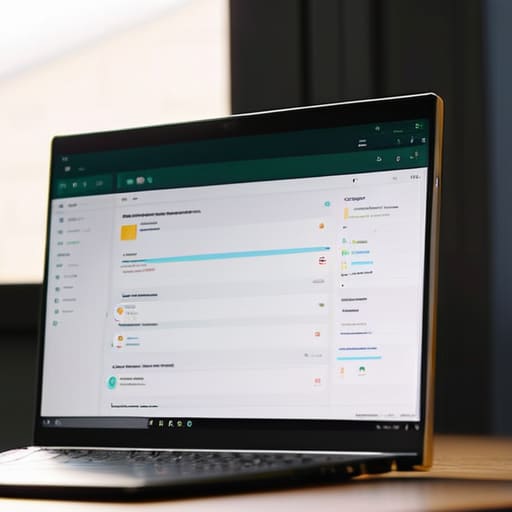
Once you’re inside, you’ll see a File Manager. It looks a bit like the old DOS directories I used to navigate back in the nineties, but it’s much more forgiving. When it comes to managing website files via control panel, the goal is simplicity. You don’t need a complex FTP client or a specialized deployment pipeline for a basic site. Just upload your HTML, your images, and your CSS directly into the `public_html` folder. If you make a mistake, you can usually just delete the file and try again. It’s straightforward, provided you don’t get distracted by the “security suites” they try to nudge you toward.
The same goes for your data. If you’re running something slightly more complex than a static page, you’ll eventually run into database management in cPanel. It’s often just a matter of creating a user, a database, and linking them together. Don’t let the terminology intimidate you; it’s just digital filing. Once the files are up and the database is set, your site is live. The rest is just noise designed to make you feel like you’ve missed something essential.
Cutting through the noise: My rules for staying sane
- Ignore the “Recommended Add-ons.” When you log in, you’ll see a dozen bright buttons promising security suites, site builders, and automated backups for an extra monthly fee. If you’ve already got a plan, you don’t need them. Most of that is just digital window dressing.
- Find the File Manager and stay there. You don’t need to learn complex FTP software right away. Most control panels have a built-in file manager that works just like the folders on your own computer. It’s the quickest way to fix a mistake without a headache.
- Locate your Database section immediately. Whether it’s MySQL or something else, knowing where your data lives is half the battle. Don’t go digging through menus during a crisis; know exactly which tab holds your database settings before you actually need them.
- Use the Email Accounts section for the basics. You don’t need a professional “enterprise email solution” from your host. Just create a simple address like [email protected] directly in the panel and call it a day. It works, and it’s included in what you’re already paying for.
- Check your PHP version settings once and then leave them alone. A common way people break their sites is by clicking around in the software configuration settings. Find the version your site requires, set it, and stop poking the settings unless something actually stops working.
The Bottom Line
Don’t get distracted by the “Premium Security Suites” or “Auto-Optimization Tools” flashing in red; if your site is up and the files are there, you’ve done your job.
Treat the control panel like a toolkit, not a playground—use it to move files and manage databases, then get out before they try to sell you a subscription to something you don’t need.
Once your domain is pointing to your host and your files are in the right folder, you’re finished; everything else is just noise designed to pad their profit margins.
Getting Over the Finish Line
At the end of the day, using a control panel isn’t about mastering every single bell and whistle they’ve tucked away in those sidebars. You’ve learned how to manage your files, handle your databases, and navigate the core settings that actually keep the lights on. Everything else—the automated marketing tools, the “premium” security suites, and the fancy analytics dashboards—is mostly just noise designed to pad their monthly invoices. If you can upload your files and point your domain to the right place, you have already won the battle. Stick to the basics, keep your eyes on the core functionality, and don’t let the interface intimidate you into buying things you don’t need.
I’ve seen technologies come and go since I started building sites back in ’97, and I can tell you this: the goal isn’t to have the most complex setup, but the most stable one. Once you get past the initial learning curve, you’ll realize that a website is just a collection of files living on a server, and you are the one in charge. Don’t let the industry’s attempt to make this look like rocket science stop you from launching. Grab your coffee, finish the setup, and get your work out into the world. The rest is just unnecessary upselling.